Obsidian MOC map of content atomic notes graph view meaningful connections
The Power of Obsidian’s Local Graph - The Sweet Setup
Source: https://thesweetsetup.com/the-power-of-obsidians-local-graph/
Title: The Power of Obsidian’s Local Graph – The Sweet Setup
URL Source: https://thesweetsetup.com/the-power-of-obsidians-local-graph/
Published Time: 2021-05-20T15:00:19+00:00
Markdown Content: The promise of apps like Obsidian and Roam Research is to give you a tool for connected note-taking. With this approach, you can see the commonalities between your thoughts as your notes bump up against one another, allowing you to see connections and discover new insights. These connections are usually represented in some sort of Graph View, which can look like a complex spiderweb of notes and ideas.
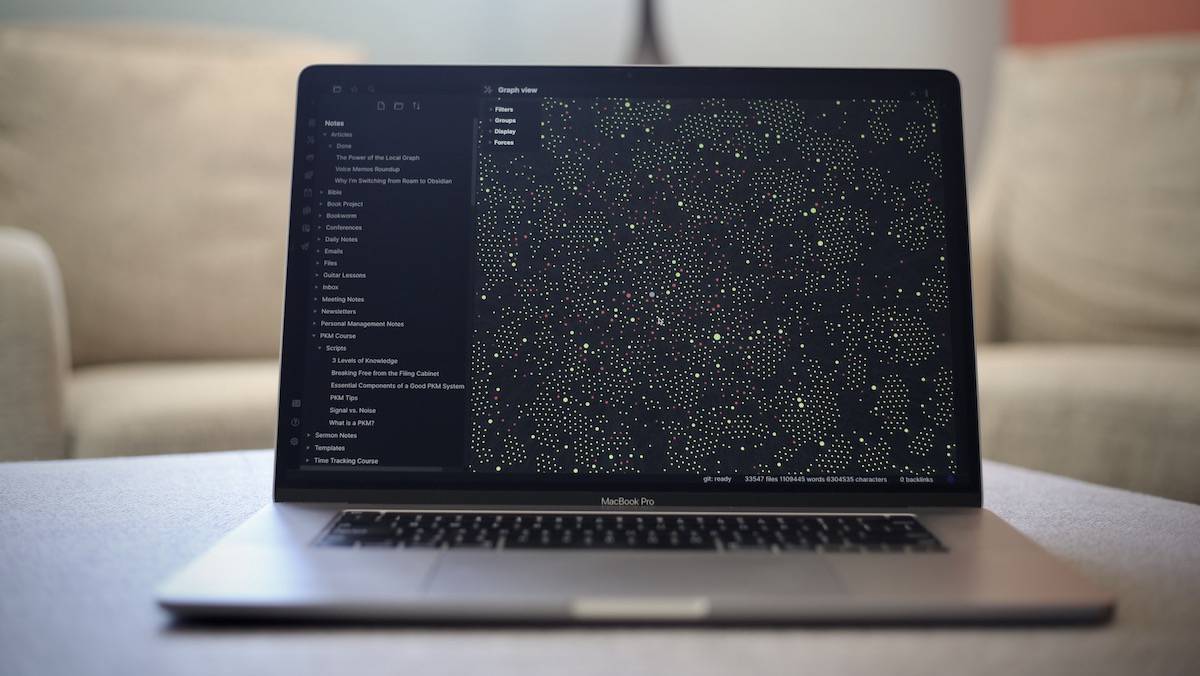
It looks impressive, but in reality, it’s often kind of useless.
In this article, I’ll show you how to leverage the Local Graph in Obsidian to navigate your notes. And if you prefer to watch, here’s a video.
Note Linking & The Graph View
At the heart of the Graph View is the concept of note linking. By making connections between notes, you are saying that these two ideas or notes have something in common and belong together. The more ideas you link together, the more they impact one another and shape the eventual output — whether that be a blog post, podcast, video, or simply your developed thoughts on a topic.
Truth be told, your brain is doing this exact thing all the time. It’s really good at connecting the dots you collect and making new things out of them, but it may not feel natural at first.
I first stumbled on this idea in Steal Like an Artist by Austin Kleon. Before reading this book, I couldn’t describe myself as “creative.” I used to get frustrated because every time I tried to create, I’d eventually notice that my work ended up being heavily influenced by something I had read, seen, or heard somewhere else. I assumed that I just didn’t have the ability, the creative gene, to make anything inspired like so many of my internet heroes did.
But Austin Kleon helped me to realize that creativity is not coming up with something completely original. It’s simply remixing the things that you take in. In fact, nothing is completely original. When you create something, you are simply connecting the dots in ways that haven’t been connected before.
I decided that I wasn’t going to worry about judging the output anymore. I was simply going to do my best to collect new dots and let my brain connect them however it was inclined to do so. Whatever came out was simply the logical result of the dots I had collected. I had a formula for my creativity. I was going to improve my creative output by simply collecting better inputs.
What I love about the Graph View is that it allows you to visualize these connections that already exist in your brain. It also allows you to manipulate the dots and connect them in new and i
Graph view - Obsidian Help
Source: https://help.obsidian.md/Graph+view
Title: Graph view - Obsidian Help
URL Source: https://help.obsidian.md/Graph+view
Markdown Content: Graph view is a core plugin that lets you visualize the relationships between the notes in your vault.
To open the Graph view, click Open graph view in the Ribbon.
- Circles represent notes, or nodes.
- Lines represent Internal links between two nodes.
The more nodes that reference a given node, the bigger it gets.
To interact with notes in the graph:
- Hover over each circle to highlight that note’s connections.
- Click a note in the graph to open that note.
- Right-click a note to open a context menu with the actions available for that note.
To navigate around the graph:
- Zoom in and out using the scroll wheel on your mouse, or using the
+and-keys. - Move the graph around by dragging it with your mouse cursor, or using the arrow keys.
You can hold Shift while using the keyboard to speed up the movements.
Settings
To open the graph settings, click the cog icon in the upper-right corner of the graph view.
Click Restore default settings in the upper-right corner of the settings box to reset any changes you make.
Filters
This section controls what nodes to show in the graph.
- Search files lets you filter notes based on a search term. To learn about how you can write more advanced search terms, refer to Search.
- Tags toggles whether to show tags in the graph.
- Attachments toggles whether to show attachments in the graph.
- Existing files only toggles whether to show notes that exists in your vault. Since a note doesn’t need to exist to link to it, this can help limit your graph to notes that you actually have in your vault.
- Orphans toggles whether to show notes without any links.
Excluded files
Files matching your Excluded files patterns will not appear in Graph view.
Groups
Create groups of notes to distinguish them from each other using color.
To create a new group:
- Click New group.
- In the search box, type a search term for the notes you want to add to the group.
- Click the colored circle to give the group a color.
To learn about how you can write more advanced search terms, refer to Search.
Display
This section controls how to visualize nodes and links in the graph.
- Arrows toggles whether to show the direction of each link.
- Text fade threshold controls the text transparency for the name of each note.
- Node size controls the size of the circle representing each note.
- Link thickness controls the line width for each link.
- Animate starts a time-lapse animation.
Forces
Increasingly Atomic Folders: A Workflow - Obsidian Forum
Source: https://forum.obsidian.md/t/increasingly-atomic-folders-a-workflow/14345
Title: Increasingly Atomic Folders: A Workflow - Knowledge management - Obsidian Forum
URL Source: https://forum.obsidian.md/t/increasingly-atomic-folders-a-workflow/14345
Published Time: 2021-03-10T03:27:28+00:00
Markdown Content:
post by EleanorKonik on Mar 10, 2021

Some people in the Discord seemed to find this organization system interesting so I decided to go ahead and type up a longer version.
The tl;dr is that I use folders to help me go from source material to synthesis to content creation using what essentially amounts to increasingly lengthy filenames, e.g.
MOC: Egypt → LITNOTE: Women in Egypt by Whoever → ZETTEL: Egyptian Princesses had less work but more prestige than their Sumerian counterparts → ARTICLE: Egypt vs. Sumeria: The Role of Princesses in the Fertile Crescent
(also, if you’d prefer this in video form, check out my interview / live notetaking session with Nick Milo over on the Linking Your Thinking channel where I showcase this process “with the garage door open,” as it were: https://www.youtube.com/watch?v=nO5N_x2so0g)
Update: if you want to go poke my actual vault, it’s here on Welcome - Eleanor’s Notes - Obsidian Publish
The long form is below:
I use the Johnny Decimal system mentioned in this amazing PKM methodology roundup post by @brimwats (which I highly recommend) to have essentially the following setup:
00 Meta
10 Dated Notes
20 Worldbuilding
30 Characters
40 Interests
.. 41 Gardening
.. 42 Programming
.. 43 Video Games
50 RL Concepts
.. 51 Indexes
.. 52 Encyclopaedic
.. 53 References
.... Books
.... Discussions
.... Journals
.... Videos
.... Websites
.. 54 Insights
.. 55 Questions
.. 56 Synthesis
70 Newsletters
80 Stories
90 Articles
.. 90 Meta
.. 91 Seeds
.. 92 Recurring
.. 93 Published
(note, for the full version of my folder layout as of March, see below.
The thing I want to draw attention to here is folder 50, which is where I do most of my real “knowledge work.” First: Note that I’ve deviated from pure Johnny Decimal “rules” by adding subfolders for the type of reference. I do this mostly to keep myself sane, because it’s never obvious from the title and I don’t want to have eleven billion notes that say ARTICLE - TITLE or BOOK - TITLE or whatever, and since I do most of my navigation from ctrl+o and use my .md files with other apps sometimes (e.g. Typora, Writemonkey, raw javascript that concatenates by folder…) being able to see the file path is really nice.
Anyway! To the PKM part. Before I developed this (heavil
Seeing Connections — The Obsidian Graph View | by Tara H
Source: https://medium.com/obsidian-observer/seeing-connections-the-obsidian-graph-view-2768b1f70eac
Title: Just a moment…
URL Source: https://medium.com/obsidian-observer/seeing-connections-the-obsidian-graph-view-2768b1f70eac
Warning: Target URL returned error 429: Too Many Requests Warning: This page maybe requiring CAPTCHA, please make sure you are authorized to access this page.
Markdown Content:
medium.com
Performing security verification
This website uses a security service to protect against malicious bots. This page is displayed while the website verifies you are not a bot.
A Real Look at How I Build Atomic Notes in Obsidian (Graph, Tags …
Source: https://www.youtube.com/watch?v=B73w162_Zsw
Title: https://www.youtube.com/watch?v=B73w162_Zsw
URL Source: https://www.youtube.com/watch?v=B73w162_Zsw
Warning: Target URL returned error 429: Too Many Requests
Markdown Content:
https://www.youtube.com/watch?v=B73w162_Zsw
About this page
Our systems have detected unusual traffic from your computer network. This page checks to see if it’s really you sending the requests, and not a robot. Why did this happen?
This page appears when Google automatically detects requests coming from your computer network which appear to be in violation of the Terms of Service. The block will expire shortly after those requests stop. In the meantime, solving the above CAPTCHA will let you continue to use our services.
This traffic may have been sent by malicious software, a browser plug-in, or a script that sends automated requests. If you share your network connection, ask your administrator for help — a different computer using the same IP address may be responsible. Learn more
Sometimes you may be asked to solve the CAPTCHA if you are using advanced terms that robots are known to use, or sending requests very quickly.
IP address: 2600:1900:0:2105::701
Time: 2026-03-27T18:05:51Z